Backing up one website is a solved problem. Backing up twenty-five is a completely different job.
At one site, almost anything works. You install a free plugin, point it at Google Drive, and forget it. At twenty-plus sites, the small annoyances multiply. A backup that takes eight minutes now takes four hours of total server time across your portfolio. A restore that needs three manual steps now needs seventy-five. And the free cloud storage you were relying on quietly fills up.
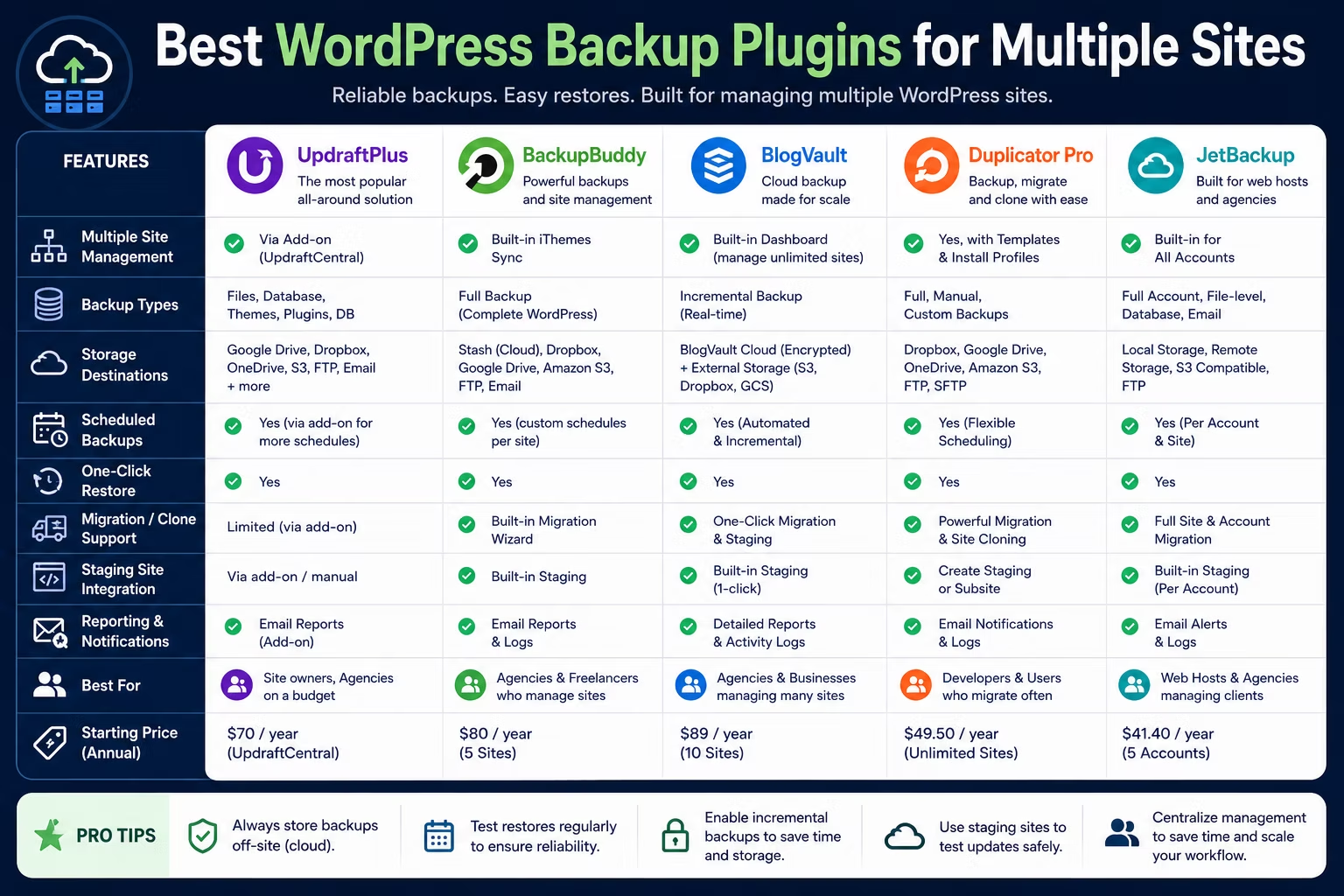
This guide compares the tools that actually hold up at agency scale: UpdraftPlus, BlogVault, Jetpack VaultPress, WPvivid, and the host-level backups you are probably already paying for. The best WordPress backup plugins for multiple sites are judged on four things rather than on feature lists: incremental backups, storage costs, restore speed when a client is shouting, and whether you can see every site from one screen.
Disclosure: some links in this article are affiliate links. If you buy through them we may earn a commission at no extra cost to you. It does not change which tools we recommend or what we say about them.
The Quick Verdict
If you do not want to read 2,000 words, here it is.
- Managing 20+ client sites and billing for care plans? Use BlogVault. The one-dashboard model and off-server restores are worth the money.
- Cost-sensitive, technical, and happy to do some setup? UpdraftPlus Premium plus UpdraftCentral gets you most of the way for less.
- Portfolio is mostly WooCommerce? Jetpack VaultPress and its real-time backups earn their place.
- Budget is genuinely zero? WPvivid free is the strongest free option, but you are buying it with your own time.
- Relying on your host’s backups alone? That is not a backup strategy. More on that below.
Backup Tools Compared at Agency Scale
| Tool | Incremental backups | Where backups live | Multi-site dashboard | Restore when site is down | Best for |
|---|---|---|---|---|---|
| UpdraftPlus | Premium only | Your own cloud storage | Yes, via UpdraftCentral | Limited | Technical teams watching costs |
| BlogVault | Yes | Vendor’s servers, included | Yes, built in | Yes | Agencies with care plans |
| Jetpack VaultPress | Real-time sync | Vendor’s servers, included | Partial | Yes, from the cloud dashboard | WooCommerce portfolios |
| WPvivid | Pro only | Your own cloud storage | Pro add-on | Limited | Free tier and migrations |
| Host-level backups | Varies | Same server or host’s cloud | No | Often needs a support ticket | A second safety net only |
Treat this as a starting point rather than gospel. Every vendor moves features between tiers, so check the current plan pages before you buy.
What Changes When You Pass 20 Sites
Incremental Backups Stop Being Optional
A full backup copies everything, every time. On a 300MB brochure site nobody notices. On a 6GB store with years of uploads, a nightly full backup hammers the server, and hammers it during the hours your client’s traffic is lowest but your other clients’ backups are also running.
Incremental backups only copy what changed since last time. That is the single biggest technical difference between the tools here, and it is almost always behind a paywall. Incremental backups are a premium feature in UpdraftPlus, and a Pro feature in WPvivid. BlogVault builds its whole model around them, and Jetpack takes a different route with real-time syncing of individual changes.
The practical rule: under about 1GB per site, full backups are fine. Above that, incremental is the difference between a backup system that runs quietly and one your clients complain about.
Offsite Storage Costs Add Up Quietly
Here is the maths people skip. Twenty sites averaging 2GB, kept for 30 days with daily full backups, is a genuinely large amount of storage. Even with sensible retention and compression, you are into paid tiers on any consumer cloud drive.
There are two models, and they cost differently:
1. Bring your own storage. UpdraftPlus and WPvivid push backups to storage you control, such as Google Drive, Dropbox, Amazon S3, or SFTP. The plugin is cheap, but you pay the storage bill and you manage the retention rules.
2. Storage included. BlogVault and Jetpack VaultPress keep backups on their own infrastructure as part of the subscription. It costs more per site, but there is no separate storage bill and no quota to babysit.
Bring-your-own is cheaper on paper and more expensive in practice, because somebody has to notice when a drive fills up. Included storage is the boring choice, and boring is good for backups.
Whichever you choose, the backups must not sit on the same server as the site. Federal guidance on data backup from CISA sets out the widely used 3-2-1 rule: keep three copies of anything important, on two different types of media, with one copy stored offsite. A backup living in `/wp-content/` on the same box as the site fails all three.
Restore Speed Is the Only Metric That Matters
Nobody has ever been fired over a slow backup. People get fired over slow restores.
When a client’s site is down, you are being judged in minutes. The questions that decide how bad the day gets are simple. Can you start the restore without a working wp-admin? Can you restore only the database, or only the uploads folder, instead of the whole site? Can you do it from your phone?
This is where free tools show their limits. Most plugin-based restores need WordPress to be running, because the plugin lives inside WordPress. If a bad plugin update took down the admin, the tool that is supposed to save you is also down. Tools that restore from an external dashboard, such as BlogVault and Jetpack, avoid that trap entirely.
One Dashboard, or Twenty-Five Logins
At twenty-plus sites, the management layer stops being a convenience and starts being the product. You need to answer one question in under a minute: *did every site back up last night?*
If answering that means logging into each site in turn, you will stop checking. And an unchecked backup is a guess. This is the same discipline problem that shows up everywhere as portfolios grow, and it is worth reading our guide to scaling WordPress hosting for agencies alongside this one, because backups and hosting fail together more often than they fail alone.
The Contenders
UpdraftPlus
UpdraftPlus is the default for a reason. It is actively installed on more than three million sites, and the free version already sends backups to Dropbox, Google Drive, Amazon S3, Rackspace, FTP, DreamObjects, OpenStack Swift, or email.
For agencies, the free version is not the interesting part. Premium adds incremental backups, automatic backups before updates, database encryption, multiple simultaneous storage destinations, and WP-CLI support. Pair it with UpdraftCentral, the separate dashboard plugin, and you get central control of backups and updates across your portfolio.
Where it wins: cost per site, once you are past a handful of sites. You own the storage, you own the files, and nothing is locked to a vendor.
Where it hurts: the setup is yours to do and yours to maintain. UpdraftCentral needs its own “mothership” install. Restores still generally need a functioning WordPress. And large restores can time out on cheap shared hosting, which is exactly when you least want to be reading server logs.
Verdict: the best value if you have the technical patience.
BlogVault
BlogVault is not really a plugin. It is a service with a plugin attached. Backups run on BlogVault’s servers, storage is included, and everything is managed from an external dashboard that sits outside your sites.
That architecture is the whole point. Because backups are stored and restored off your server, a dead site is not an obstacle. Incremental backups keep the load off the host, and each stored backup is a complete restore point rather than a chain you have to reassemble.
Where it wins: it was designed for the exact problem in this article’s title. One dashboard, real incremental backups, offsite storage included, staging and restore that work when the site does not.
Where it hurts: price. It is the most expensive option here per site, and for a portfolio of small brochure sites it can be hard to justify unless you are charging for maintenance. You are also dependent on a vendor’s infrastructure and their retention rules.
Verdict: the strongest choice if backups are part of a paid care plan. Bill it through.
Jetpack VaultPress Backup
Jetpack’s backup product takes a different angle: instead of scheduled snapshots, it does daily full backups plus real-time syncing of individual changes such as post updates, comments, media changes, and plugin modifications, according to Jetpack’s own documentation. Restores run from the Jetpack cloud dashboard rather than from wp-admin.
For a content site, real-time backup is a nice-to-have. For a store, it is the difference between losing nothing and losing four hours of orders.
Where it wins: genuinely real-time protection, mature infrastructure, and a restore path that does not depend on your site being up.
Where it hurts: pricing is per site, which scales badly across a large portfolio of small sites. It also pulls you into the wider Jetpack ecosystem, which is more connected than some agencies want. Public documentation is thin on retention specifics, so confirm those before you commit a client to it.
Verdict: worth it for the WooCommerce sites in your portfolio. Harder to justify for the brochure sites.
WPvivid
WPvivid is the most generous free option. On 900,000-plus active installs, the free version includes scheduled backups, remote storage to Dropbox, Google Drive, Amazon S3, Microsoft OneDrive, DigitalOcean Spaces, FTP and SFTP, plus site migration and staging.
Getting free migration and staging in a backup plugin is unusual, and it makes WPvivid a useful tool to keep around even if it is not your primary system. Moving a finished build from a development server to live is a job it handles well, which pairs neatly with our walkthrough on migrating WordPress without losing SEO.
Where it wins: the free tier does more than most paid tiers, and one-shot restores are clean.
Where it hurts: no incremental backups without Pro, which means full backups every run and real strain on bigger sites. The multi-site management layer is an add-on rather than a core strength. Support is thinner than the commercial services.
Verdict: excellent free tool and a great migration utility. Not the backbone of a twenty-five-site operation.
Host-Level Backups
Almost every decent managed host now includes daily backups, and the good ones are genuinely good. If you are already on quality infrastructure such as Kinsta, you have a real safety net that costs you nothing extra.
Use them. Just do not mistake them for a backup strategy.
Here is why they are not enough on their own:
- They live with the problem. If the host has an outage, gets compromised, or suspends the account over a billing mix-up, the backups are behind the same locked door as the site.
- Restores are often not self-service. On plenty of hosts, restoring means opening a support ticket and waiting. That is fine at 2pm on a Tuesday and catastrophic at 6pm on a Friday.
- Granularity is poor. Many host backups are all-or-nothing. Restoring one accidentally deleted page means rolling the entire site back and losing everything else that happened since.
- Retention is short. Fourteen days is common. A slow-burning problem, like a corrupted database table or a compromise nobody noticed, can easily outlive the window.
- They are locked to that host. Leaving the host often means leaving the backups behind.
We have written before about the WordPress hosting mistakes agencies keep making, and treating a host snapshot as the only line of defence is near the top of that list.
Verdict: a valuable second layer. Never the first.
Best Tool for Each Situation
Best overall for 20+ client sites: BlogVault. One dashboard, incremental backups, included offsite storage, and restores that work when the site does not. If clients pay you a monthly maintenance fee, this is the obvious answer.
Best value: UpdraftPlus Premium with UpdraftCentral. More setup, lower running cost, and you keep control of the storage. Best suited to teams comfortable in WP-CLI and server logs.
Best for WooCommerce: Jetpack VaultPress Backup. Real-time protection for orders is worth paying per site for on the handful of stores in your portfolio.
Best free option: WPvivid. Real remote storage, migration, and staging at no cost. Expect to spend your own time instead of money.
Best second layer: your host. Keep host backups switched on regardless of what else you run. Two independent systems is the entire point of the 3-2-1 rule.
You do not have to standardise on one tool. Most mature agencies do not. A common and sensible split is BlogVault on the twelve sites that generate revenue, WPvivid on the ten small brochure sites, and host backups underneath everything.
What Actually Happens During a Real Restore
Vendors demo restores on clean, tiny, healthy sites. Real restores are messier. Here is what actually goes wrong.
The backup is fine but the restore times out. Big sites on modest hosting hit PHP execution limits partway through unpacking. The plugin reports failure, the site is now half-restored, and it is worse than when you started. This is why off-server restores matter.
You restore the database and break the site. Database-only restores are fast and often correct, but if plugin files have changed since that snapshot, you get a version mismatch and a white screen.
The URLs are wrong. Restoring to a different domain or a staging URL without a proper search-and-replace leaves absolute URLs pointing at the old location. Images vanish, redirect loops appear.
Nobody knows the client’s DNS or login details. The restore works perfectly and then stalls for forty minutes while you hunt for credentials.
The backup was never valid. This is the worst one, and the most common. The job had been failing silently for six weeks because a storage token expired. Nobody checked, because checking meant twenty-five logins.
Three habits prevent most of this:
1. Test a restore quarterly. Pick a random client site, restore it to staging, confirm it loads. A backup you have never restored is a hypothesis. Having a proper staging environment and client access set up makes this a fifteen-minute job instead of a scary one.
2. Monitor the backups, not just the sites. Whatever tool you use, you need one screen that goes red when a job fails.
3. Write the runbook before you need it. A one-page document per client with host, DNS registrar, credentials location, and restore steps. Your future self at 6pm on a Friday will thank you.
Final Recommendation
For an agency running twenty or more client sites, the honest answer is that you need two layers, not one.
Layer one is a dedicated backup service with its own dashboard. For most agencies, that is BlogVault, because the time it saves is worth more than it costs and the restores work under pressure. If your margins are tight and your team is technical, UpdraftPlus Premium with UpdraftCentral does the same job for less money and more effort. Put Jetpack VaultPress on the stores.
Layer two is your host. Solid managed infrastructure with its own daily snapshots gives you an independent copy that does not depend on a plugin behaving. If you are still consolidating your portfolio onto decent infrastructure, Cloudways is a common landing spot for agencies, and our comparison of managed WordPress hosting for agencies goes deeper on the options.
Whatever you pick, remember what a complete backup actually contains. The official WordPress documentation is blunt about this: your site is a database and a set of files, and copying the files does not copy the database. Any tool that only handles one of them is not backing up your client’s site.
Backups are unglamorous. They are also the difference between a bad afternoon and a lost client. Get the system right once, apply it across the portfolio, and it stops being something you think about. If you are still assembling the rest of your stack, our roundup of the plugins every freelance designer should use is a good next stop.
Frequently Asked Questions
What is the best WordPress backup plugin for managing multiple client sites?
BlogVault is generally the best choice for agencies managing 20 or more client sites, because backups run and restore from its own servers and every site is visible in one dashboard. UpdraftPlus Premium paired with UpdraftCentral is the best-value alternative if your team is technical and you want to control your own storage.
Are host-level backups enough for client websites?
No. Host backups are a useful second layer, but they usually live in the same environment as the site, often need a support ticket to restore, keep short retention windows of around 14 days, and cannot be taken with you if you change hosts. Always run an independent backup as well.
Do I need incremental backups for client sites?
If your sites are under roughly 1GB each, full backups are fine. Above that, incremental backups matter because they only copy what changed, which cuts server load and backup time dramatically. Incremental backups are a paid feature in both UpdraftPlus and WPvivid.
Where should WordPress backups be stored?
Offsite, on infrastructure separate from the live site. CISA guidance recommends the 3-2-1 rule: three copies of important data, on two different media types, with one copy stored offsite. A backup saved inside the site’s own hosting account does not meet that standard.
How often should I test a WordPress restore?
At least quarterly. Pick a client site at random, restore it to a staging environment, and confirm it loads correctly. A backup that has never been restored is only an assumption, and silent backup failures are the single most common reason a restore fails when it is needed.
Can I use a free backup plugin for client work?
You can, and WPvivid’s free version is the strongest option, including remote storage, migration and staging. The trade-off is that free tools lack incremental backups and centralised monitoring, so you pay in your own time. That becomes hard to sustain much beyond 10 sites.
Pick one site from your portfolio this week and try a full restore to staging. If it works, roll the same system out across every client site you manage. If it does not, you have just found the problem before your client did.
Need a WordPress developer?
Let's build something fast, scalable, and SEO-ready — from a custom theme to a full headless stack.
Get in Touch