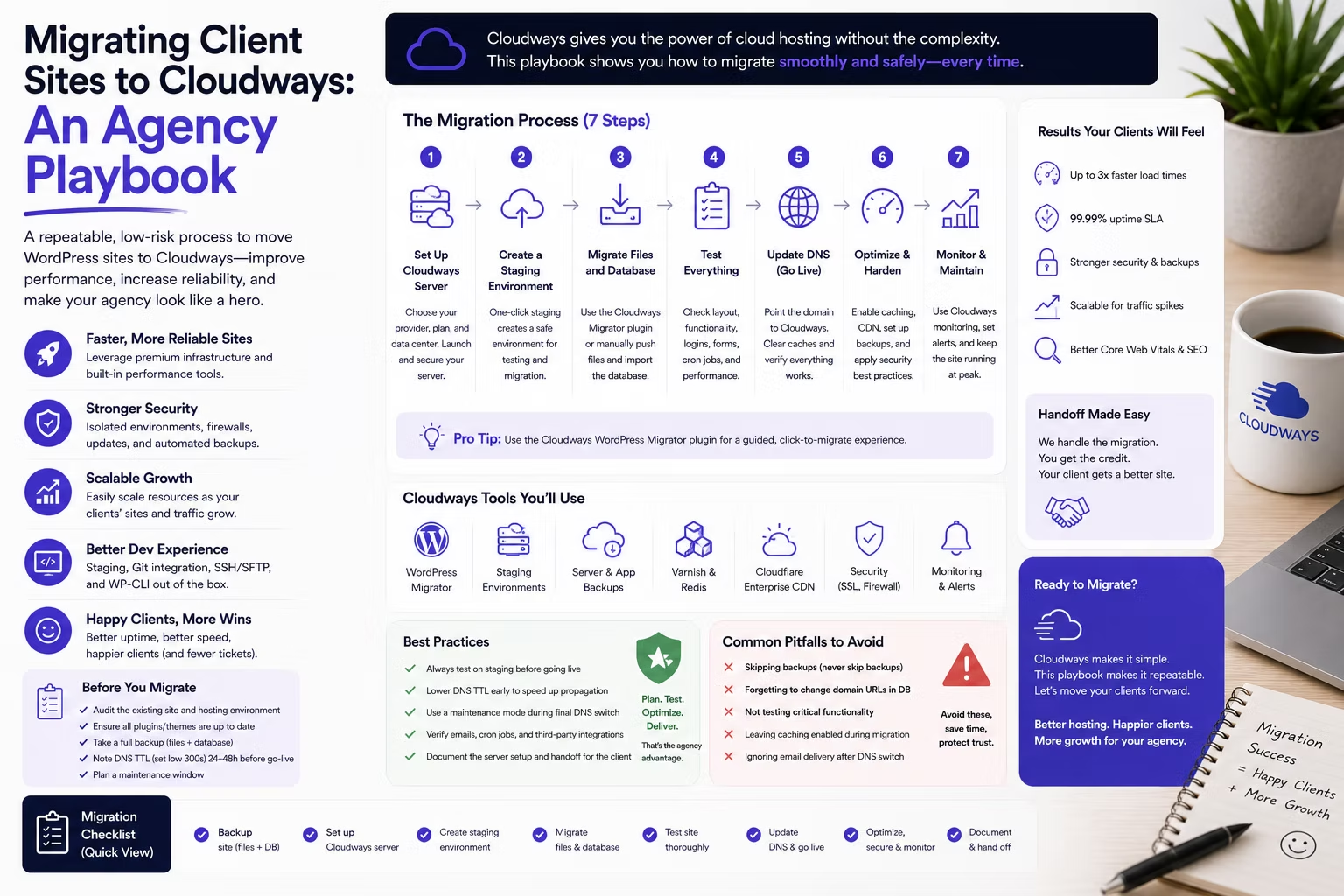
Moving one WordPress site to a new host is a Saturday afternoon. Moving forty client sites is a project, and the difference is not technical. The plugin that migrates a single site works the same on site thirty-eight as it did on site one. What changes is everything around it: which client you call first, whose renewal date is three days away, which site quietly depends on a cron job nobody documented, and how you get all of it done without a single client emailing to ask why their contact form stopped working.
This is the portfolio version of the job. If you want the mechanics of moving a single site, we covered that in the step by step guide to migrating a WordPress site to Cloudways. What follows assumes you already know how to move one, and now have to move twenty.
Disclosure: some links in this article are affiliate links. If you buy through them we may earn a commission at no extra cost to you. It does not change what we recommend, and where a product is the wrong fit we say so.
Start with an inventory, not a migration
Before anything moves, build one spreadsheet with a row per site. Not a mental list. A spreadsheet, because the information you need is the information you will otherwise discover at the worst possible moment.
- Who owns the hosting account. Some clients bought their own hosting years ago and you have the login. Moving that site means moving their billing relationship, which is a conversation, not a task.
- Where DNS is managed. Registrar, Cloudflare, or the current host. This decides how fast you can cut over and who needs to be awake when you do.
- Renewal date on the current host. Sites renewing in six weeks move first. Sites that just renewed for a year are the ones where you eat the overlap.
- What the site actually does. A brochure site is a copy and paste. A WooCommerce store with live orders, saved cards, and a subscriptions plugin is a different category of risk.
- Anything non standard. Custom cron, a staging subdomain, transactional email through the host, an SSL certificate bought rather than generated, a plugin licensed to a specific domain or IP.
That last column is where portfolio migrations go wrong. The sites that break are almost never the complicated ones you were careful with. They are the simple ones you assumed were simple.
Decide how many sites share a server
This is the decision that shapes your hosting bill, and it is specific to the way Cloudways is built. You are not buying per site hosting. You are renting a server and putting as many applications on it as it will carry, which means the per site cost is entirely a function of how densely you pack it.
A 2GB DigitalOcean server on the Flexible plan runs $11 a month. Put five small brochure sites on it and your hosting cost per client site is a bit over two dollars. Put one busy WooCommerce store on it and you will be upgrading within a month. An 8GB, four vCPU server at $88 a month is a realistic home for a dozen or so ordinary business sites, and a poor home for three high traffic stores.
The practical rule is to separate by risk rather than by client. Keep transactional sites, anything taking payments or bookings, on their own server or on a server with plenty of headroom. Group the brochure sites together and pack them properly. We go into the cost arithmetic across different portfolio sizes in the comparison of pay as you go and fixed cloud hosting pricing, and there is a per site cost breakdown across hosts in the Pressable pricing for agencies article.
Sequence the move so the risk lands early
The instinct is to start with the easiest site to build confidence. The better approach is to start with a site that is easy but real: a live site, with a live domain, belonging to a client who will tell you honestly if something looks off. Your own site is the ideal first move. You will find every gap in your process on that first cutover, and you want to find them on a site where the cost of a mistake is your own afternoon.
After that, work in small batches. Three or four sites a week, not fifteen in a weekend. Batching matters because migrations are not the slow part. Verification is. A site can be copied in twenty minutes and still need a day of somebody clicking through it before you are willing to point a domain at it.
Leave the highest value client until you have moved at least a third of the portfolio. By then the checklist is real rather than theoretical.
Plan DNS days before you touch anything
DNS is the only part of a migration your client experiences. Everything else happens on servers nobody is looking at.
- Drop the TTL first. Two or three days before a cutover, lower the record TTL to 300 seconds. A record still cached at 86400 seconds means some visitors keep hitting the old server for a day after you switch, which is how you end up with orders landing in two databases.
- Get registrar access before migration day, not on it. The most common cause of a stalled cutover is nobody being able to log in to change an A record.
- Know where email lives. If the current host also handles the client’s mailboxes, moving hosting does not move email, and a careless nameserver change will take it down. Check the MX records and copy them across before you switch anything.
- Keep the old server running. Do not cancel for at least a week. It costs a few dollars and it is your rollback.
Who does the actual moving, and what it costs
This is worth being precise about, because the phrase “free migration” covers two quite different things and the difference matters enormously at portfolio scale.
| Route | Cost | Who does the work |
|---|---|---|
| First website, expert managed | Free, standard offer | Cloudways engineers |
| Further WordPress sites, standard offer | Free | You, using the Migrator plugin |
| Further WordPress and WooCommerce sites, during the current promotion | Free | Cloudways engineers |
| Non WordPress applications after the first | $99 per site | Cloudways engineers |
Read that table as an agency with twenty sites to move. Under the standard offer you get one site done for you and nineteen to do yourself. The plugin is genuinely good and self managed migrations are unlimited and free, but nineteen sites is still nineteen sets of verification, nineteen cutovers, and nineteen evenings. Expert led migrations for the whole portfolio is a different proposition, and Cloudways quotes one to two business days per site depending on complexity, which is another argument for batching rather than trying to do the lot at once.
Either way, the work that remains yours does not disappear. Cloudways will copy files, databases and settings, and test that the site functions. They will not know that the client’s booking form posts to a third party endpoint that whitelists the old server IP. Only you know that, which is why the inventory column on non standard behaviour earns its place.
Current offer, valid until 15 September 2026: Cloudways is running 40% off for four months with promo code SUMMER404, and including unlimited expert led migrations for WordPress and WooCommerce sites rather than the usual single free migration. Two conditions worth knowing before you plan around it: the discount is for new customers moving from a free trial to a paid plan, so it does not apply if you already host with Cloudways, and standard pricing resumes after the four months. Budget on the normal rate. Check the current offer and plans on Cloudways.
What actually breaks at portfolio scale
After enough of these you stop checking whether the homepage loads and start checking the six things that are actually wrong.
- Hardcoded URLs. Page builders, sliders and options tables store absolute URLs, including the staging hostname you tested on. Run a search and replace against the database, then check again on the live domain.
- Transactional email. Forms and WooCommerce receipts that sent fine from the old server silently stop or land in spam, because SPF and DKIM records still authorise the old host. This is the single most common post migration complaint and the one clients notice last, which means you hear about it a fortnight later.
- Cron. Scheduled posts, backups, subscription renewals and abandoned cart emails all run on cron. If the old host had a system cron calling wp-cron, that does not come with the files.
- Licensed plugins. Premium plugins and themes activated against a domain or an IP need reactivating. You will find this when an update fails, not at migration time.
- Object cache and Redis. Excellent for performance and perfectly capable of serving one client’s cached page to another if two sites on one server share a cache prefix. Verify each application has its own.
- SSL. Certificates do not travel. Issue and verify a new certificate per site before cutover, and check that any forced HTTPS redirect is not looping.
Staging is where you catch these, which is why staging access is not a nice to have on an agency host. We made that argument in the piece on hosting features designers actually need.
Budget for the overlap, and bill for the work
For anywhere from a week to a couple of months you are paying two hosts. That is not waste, it is the cost of a rollback, but it needs to be in the plan rather than a surprise on a credit card statement. Sites with a year just paid on the old host are the awkward ones. Either you eat the remaining term or you wait for the renewal, and a staggered plan that follows renewal dates is usually cheaper than a clean sweep.
The bigger question is whether the migration hours are billable. Moving a client to better hosting is real work with a real benefit, and doing it for nothing trains clients to see infrastructure as free. If you fold hosting into a care plan, the migration is a reasonable one off line item on top. If you do not have a care plan, this is a good moment to start one, and the article on pricing WordPress maintenance plans covers how to structure it.
Have a rollback you have actually tested
A rollback plan that exists only as a sentence is not a rollback plan. Before the first cutover, prove the whole reversal on your own site: point DNS back to the old server, confirm the site loads, confirm nothing was lost. Ten minutes of rehearsal, and you find out whether the old host is still serving or whether you already deleted the account.
The one thing you cannot roll back is data written after the cutover. An order placed on the new server does not exist on the old one. For any site taking transactions, the sequence is to put the store into maintenance mode, do the final database sync, cut DNS, verify, and only then reopen. For a brochure site none of that matters. Knowing which sites are in which category is, again, the inventory doing its job.
Is it worth doing at all
Sometimes not. If your complaint is that client sites are slow, migrating will not fix an unoptimised site: bloated page builders, thirty plugins and no caching produce a slow site on any host. Fix the sites first, then judge the host. Where a move genuinely pays off is when you are managing hosting across four different providers, each with its own login, its own billing date and its own support queue, because consolidation buys back hours every month. That, more than raw speed, is the honest case for moving a portfolio. If you are weighing providers rather than committing to one, the Cloudways, Lightsail and DigitalOcean comparison is the place to start, and you can try Cloudways on a free trial with one site before you commit the portfolio.
Frequently asked questions
How long does it take to migrate 20 client sites to Cloudways?
Plan on four to six weeks at a comfortable pace, not a weekend. Cloudways quotes one to two business days per site for an expert managed migration depending on complexity, and the copying is rarely the bottleneck. Verification and DNS cutover scheduling are. Three or four sites a week keeps the verification honest and keeps any single mistake small.
Do I need to tell clients before migrating their site?
Yes, and in writing. If the hosting account is in their name or paid on their card you need their consent to move it at all. Even where you own the account, a short note saying the site is moving to faster infrastructure on a given date, with no expected downtime, turns a mystery into a service you provided. It also means that if something does break, they contact you rather than assuming they were hacked.
Will client sites go down during the migration?
They should not. A migration copies the site to the new server while the old one keeps serving traffic, so the only sensitive moment is the DNS cutover. Lower the TTL a few days beforehand and keep the old server running afterwards and visitors hitting either server see a working site. The exception is a store taking orders, where you want a short maintenance window for the final database sync so no order is written to a server you are about to abandon.
Should I put all my client sites on one Cloudways server?
Pack the low risk sites together and isolate anything transactional. Because Cloudways charges per server rather than per site, density is what makes the per site cost low, and a dozen brochure sites on one 8GB server is efficient and fine. A WooCommerce store sharing a server with eleven other sites is one traffic spike away from making everybody slow, and one misconfigured cache prefix away from a support call you will not enjoy.
What breaks most often after a WordPress migration?
Transactional email, by a wide margin. Contact forms and WooCommerce receipts stop arriving or start landing in spam because SPF and DKIM records still authorise the previous host. After that: hardcoded URLs left pointing at a staging hostname, cron jobs that never came across, and premium plugin licences tied to the old domain or IP. None of these are visible on the homepage, which is why a checklist beats a look at the site.
Can I use the free expert migrations if I am already a Cloudways customer?
Not under the current promotion. The 40% for four months and the unlimited expert led migrations are for new customers upgrading from a free trial to a paid plan, and the terms exclude existing customers and cannot be combined with other codes. The standing offer of one free expert managed migration plus unlimited self managed migrations through the Migrator plugin is available regardless, and non WordPress applications are $99 per site after the first.
Need a WordPress developer?
Let's build something fast, scalable, and SEO-ready — from a custom theme to a full headless stack.
Get in Touch